
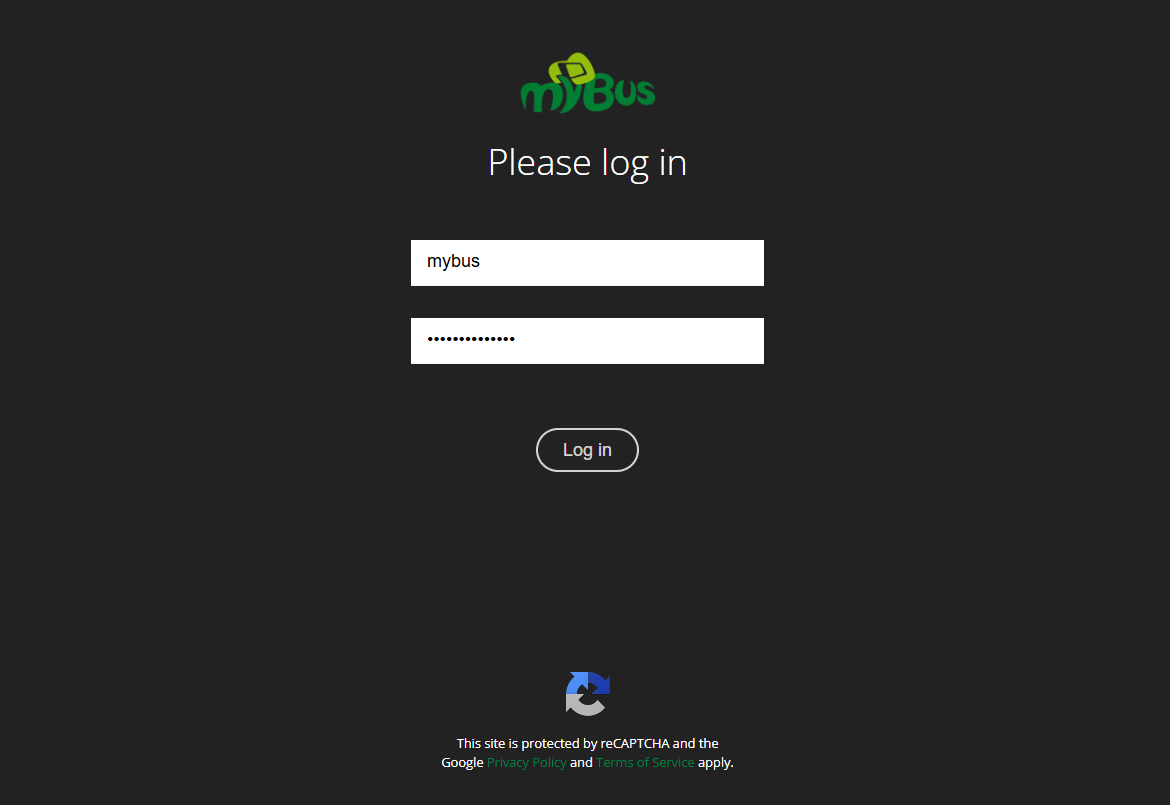
Login
To log in to myBus Manage, you must enter your username and password.
Two-Factor Authentication (2FA)
If 2FA is enabled for your Agency, the system will prompt you to set it up upon logging in.
Setting up 2FA is optional: you can choose not to configure it and continue accessing the platform using only your username and password. However, once configured, you will be required to enter the verification code on every login.
Initial 2FA Setup
-
Download an authenticator app: Install an authenticator app on your mobile device, such as Google Authenticator, Authy, or Microsoft Authenticator.
-
Scan the QR code: Use your authenticator app to scan the QR code displayed on the screen. This will link your user account with the app.
-
Enter and submit the verification code: Click the button to display the input field. Enter the 6-digit code generated by your app and click .
- If the code is correct: A green alert will appear with the message "2FA confirmado con éxito". You will remain on the same setup page.
- If the code is incorrect: An error alert will be displayed indicating that the code was wrong, allowing you to try again.
Subsequent Logins
Once the initial setup is complete, every time you log in you will be prompted for the verification code from your app:
- Correct code: You will be redirected directly to the Dashboard view.
- Incorrect code: An error alert will be displayed, and you will remain on the login screen until a valid code is entered.